Google Pay™ Integration
Overview
This document provides guidance for integrating Google Pay™ into your payment processing system. Google Pay™ facilitates swift and secure transactions for your customers, whether they are using your Android app or website. This guide outlines the necessary steps for integration, including prerequisites, transaction processing, supported card parameters, and error handling.
For the operating model behind Google Pay at NetValve — including how NetValve's gateway registration with Google removes the need for you to manage any keys or certificates — read the Digital Wallets overview.
How NetValve handles certificates
NetValve is registered with Google as the Google Pay gateway netvalve. That means you do not need to:
- Obtain a Google Pay gateway certificate.
- Generate or rotate a public/private key pair for tokenization.
- Share any cryptographic material with NetValve.
You configure your front-end to use NetValve as the gateway, send the resulting encrypted token to NetValve in the Sale request, and NetValve decrypts it server-side with its registered processor key before routing to the acquirer.
When you configure Google's PaymentsClient, use:
tokenizationSpecification: {
  type: "PAYMENT_GATEWAY",
  parameters: {
    gateway: "netvalve",
    gatewayMerchantId: "<your NetValve MID or site ID>"
  }
}
If you'd rather fetch the merchant config from NetValve at runtime instead of hard-coding it, call POST /initializeGooglePaySession. NetValve returns the merchant identifier, display name, and registered origin we have on file for the authenticated client:
{
  "merchantIdentifier": "BCR2DN4T...",
  "merchantName": "Example Store",
  "merchantOrigin": "shop.example.com"
}
This is useful when the same checkout code is shared across environments — staging and production return their respective configurations without code changes.
Prerequisites
Before integrating Google Pay™ into your Android app or website, ensure you have the necessary prerequisites in place:
Android App
For Android app integration, refer to the:
- Google Pay Android developer documentation;
- Google Pay Android integration checklist;
- Google Pay Android brand guidelines.
Web Merchants
For Web merchants, refer to the:
- Google Pay Web developer documentation;
- Google Pay Web integration checklist;
- Google Pay Web Brand Guidelines.
Transaction Processing
Google Pay Web Integration - Generate Tokens
On this link you can generate token: Google token generator.
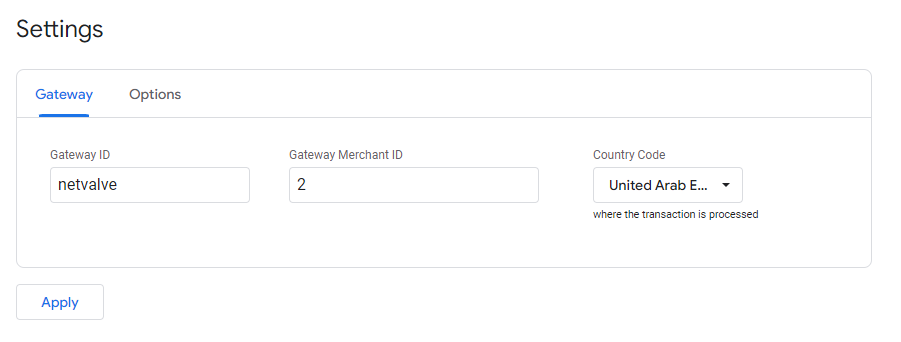
Fill the fields following these guidelines:
- Gateway ID: netvalve;
- Gateway Merchant ID: merchant id, netvalve merchant id or site id. If you don’t have this information contact the NetValve support team;
- For testing with Google test cards, you should join the test group on this link Test with sample credit cards;
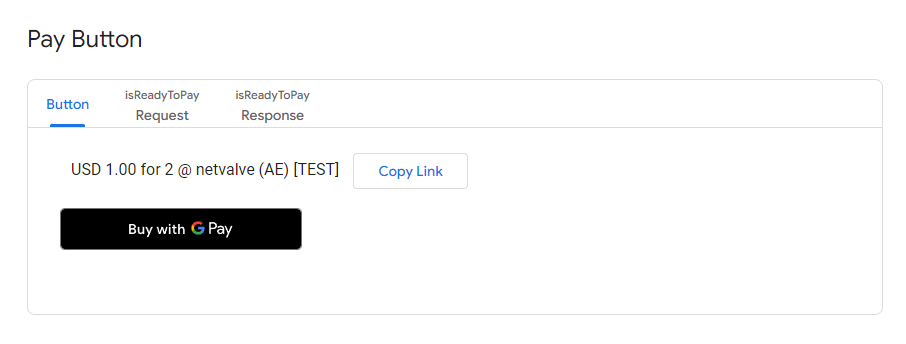
- Click the Apply button, then go to the next section and click the Buy with G Pay button:
- Choose the payment method and click the Continue button:
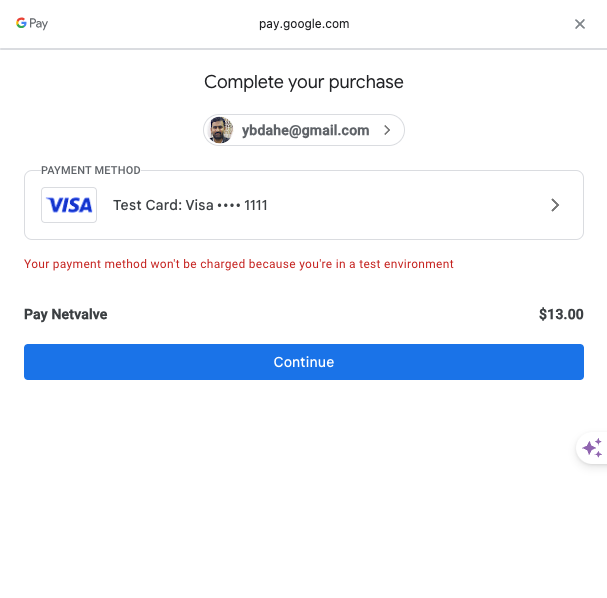
- As a response, Google will provide the
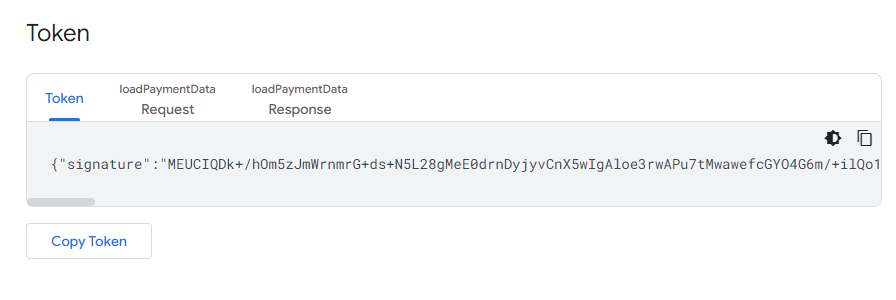
PaymentDataitem. There, in thepaymentMethodData.tokenizationData.tokenfield, you can find the encrypted Google Pay Token (a string of characters).
{
    "signature": "MEUCIQDY3wBQyHB4sZcktRoJXKxm+OLcjHzCvdDeGn23oX0kkwIgKznRFZZL+sDMv1b5cuD+YurXMZraYBsr9hbravVY5Ro\u003d",
    "protocolVersion": "ECv1",
    "signedMessage": "{\"encryptedMessage\":\"cI87tLqzqTGyCFnMMCVWcTHw3xhYIK+CEnuQ74K+nlLpCgOlfpScib9jds4sxDtN6CunCqCSMfd/3yHeeRy6aCx1yyqcT4ey6NueeBznprJpkmVVgI1JHWLQt4hzAXMUAcYASYLOabKP9fUZvHkOBDytD531jpzNXa+Spc/zrpGzFKx2C4VU9sC95q9i+ey+kr7ZMNVCOFJPWXu7lKZ105IOOqozJ6/70MKmxP3jM89eeq+/19QnyHjQLXfnQPvQjiUJKGCcRKDLlrb3XoY5ZUUzGfN5eZCLzCVg0hWEbwU+6J7KWYJyW+Wr1r8bagN9zWsrMKhDpsQbHfyzb+yBzFUoxeUgL4a7FeVvEllIcHtqsvTCf6FENV20aF5VLDv5qzUkV+PzTAIbFEuabA0God9UbVCVVv7nM8QFzvRPhzYYFVFTn4JHvL2qZ4pAR9lE+w\\u003d\\u003d\",\"ephemeralPublicKey\":\"BPHLC4sBHpenY1M0ixmiDMuWJTaTJOqggRUwtgBJMcBp28VsxHD7zPI7985x4F5EjMP5y8j/cuUzbe/cGPjOKGk\\u003d\",\"tag\":\"RaXrPOUuc5iw3oxDa0C2MOjaKxgxIRQvwOspmtFV0zU\\u003d\"}"
}
Copy the token and insert it in the Token section:
Sample Payload
{
"amount": 999.00,
"cardHolderName": "John Doe",
"clientOrderId": {{clientOrderId}},
"currency": "USD",
"customerAddress": "123 Main St",
"customerCity": "New York",
"customerCountryCode": "US",
"customerEmail": "docs@netvalve.com",
"customerIp": "203.0.113.1",
"customerName": "John",
"customerLastName": "Doe",
"customerPhone": "+12025551234",
"customerState": "NY",
"customerZipCode": "10001",
"netvalveMidId": 2, //Please use your netvalve mid id or site id
"paymentType": "WALLET",
"walletType": "GOOGLE_PAY",
"googlePaySSL":

//Add you Google token here...

}
If you decrypt the Google Pay token on your own backend, you can skip googlePaySSL and send the decrypted card-network fields directly in a tokenizedDTO object instead. See Submitting a decrypted payload.
Success Criteria
-
responseCode - GTW_1000
Example Request with a Token
{
   "amount":999.00,
   "cardHolderName":"John Doe",
   "clientOrderId":{{clientOrderId}},
   "currency":"USD",
   "customerAddress":"123 Main St",
   "customerCity":"New York",
   "customerCountryCode":"US",
   "customerEmail":"docs@netvalve.com",
   "customerIp":"203.0.113.1",
   "customerName":"John",
   "customerLastName":"Doe",
   "customerPhone":"+12025551234",
   "customerState":"NY",
   "customerZipCode":"10001",
   "midId":2,
   "paymentType":"WALLET",
   "walletType":"GOOGLE_PAY",
   "googlePaySSL":{
      "signature":"MEUCIQDk+/hOm5zJmWrnmrG+ds+N5L28gMeE0drnDyjyvCnX5wIgAloe3rwAPu7tMwawefcGYO4G6m/+ilQo1DqnphVIJ/s\u003d",
      "intermediateSigningKey":{
         "signedKey":"{\"keyValue\":\"MFkwEwYHKoZIzj0CAQYIKoZIzj0DAQcDQgAE0NSQX6HDOtKu3B2TI9HJV3IjiRQdebbCcDR9lVkx51TeIZ/J8lGDFcpqZTkNED1g5QXgTqq5ALpG+d43cQRaQA\\u003d\\u003d\",\"keyExpiration\":\"1715897257675\"}",
         "signatures":[
            "MEYCIQCUGkX7SGY6WG94ZHuKfyQpHG6o2KbL1gYmB8aZPRebmwIhAMH61R36CiPbPhY3oohvt6pw3ZQJkYDWFDB6SHpFABTA"
         ]
      },
      "protocolVersion":"ECv2",
      "signedMessage":"{\"encryptedMessage\":\"Syk7ZTw7KzXS6rEisGPZlHTEgpIlH5Z5HJktPKcYHrPWcVh+d4l1MroajG5NQPEOgYxlZV9A4XXq2ZdM/2H/wge9aSCDzY9iY8m2JCMK1SoZVrnD5+dy66iG93VFuAdUjf+ZiddsWDRR1cLyyz/IudsNKaIKKzJNFHk+pCFktklMhvSSaGoDJbKxMqEDuipk6E+R2sAEkBBuKD8zdlzn1xheLnv+MMULUqe7XJTqcCiAJajqMBTFpnyQX3gxd28QwFKu2FX2mYsviR7VsxPnETlSvnabHpcxkLv8EL0mqkGM5hicmjfjEbEKeb2ZXkULBTxipfeHf5eSXo+MyCoo8W5Q+8SvwE9x22KaxJy0A3vPAfgQOK568y+riM+yfP7xt5lWCrCr0rKhepeT+JDEZHdT3gUMlMLdmtzlyT7r6ddtftMkTYzq5BneBFHqYl7uryRh9lFsjSrDjoZQjUGzASPQX+s3ty593Y/1t88fXCNV2xf3PHkpMFq9ZaTKwv1XyHs0uXgawVr2+DVnXcqxfteM5GvpxN42EDlz\",\"ephemeralPublicKey\":\"BOmikxGNXx91S5MftOqKFwqbpiGUr8HfN0zAry5iN4T9LtwtklyG7vS1BsU2YJFaggu5GmuLhA9vFgfvKIPnNUI\\u003d\",\"tag\":\"kJSe9C2RkVCpGt5WCzIZgYnBbywF+pc5LdlUzo43NZw\\u003d\"}"
   }
}
Example Response
{
    "traceID": "b126345b-6199-4635-9bf2-f9aadbdd4d58",
    "responseTimestamp": "2024-11-08T12:57:41.771+00:00",
    "transactionID": 18749,
    "responseCode": "GTW_1000",
    "responseMessage": "Transaction Approved/ Request Successful.",
    "responseCodeType": "APPROVED",
    "paymentMethod": "GOOGLE_PAY",
    "cardNumber": "411111******1111",
    "cardType": "VISA",
    "bankTransactionId": "431312750166",
    "authCode": "TAS213",
    "midId": 2,
    "netvalveMidId": "289e253d-f955-4e29-a2c7-bb1805883ee0"
}
Submitting a decrypted payload (tokenizedDTO)
The googlePaySSL flow above hands NetValve the encrypted Google Pay token and lets NetValve decrypt it server-side. If you'd rather decrypt the token yourself and pass NetValve the resulting card-network data, send a tokenizedDTO object in place of googlePaySSL. Everything else about the Sale request is identical — same endpoint, same paymentType: WALLET, same walletType: GOOGLE_PAY.
This is useful when you already decrypt the Google Pay token on your backend (for example because you hold your own gateway/tokenization keys) and want a single integration path across processors.
Send either googlePaySSL or tokenizedDTO — not both. If tokenizedDTO is present, NetValve treats the wallet payload as already decrypted and does not attempt to decrypt anything.
Two authentication methods
Unlike Apple Pay, Google Pay decrypts into one of two authentication methods, and the fields you send differ between them. Set authMethod accordingly:
authMethod | What cardNumber holds | cryptogram / eciIndicator |
|---|---|---|
CRYPTOGRAM_3DS | A network token (DPAN) | Required — the online cryptogram and ECI from the decrypted token. |
PAN_ONLY | The real card number (FPAN) | Omit — there is no cryptogram or ECI for this method. |
Sending the correct authMethod matters: some acquirers route PAN_ONLY transactions differently, and a PAN_ONLY payload that carries a cryptogram (or vice versa) may be rejected.
Where the fields come from
After you decrypt the Google Pay token, the paymentMethodDetails object looks like this (Google's fields shown for reference):
{
    "paymentMethodDetails": {
        "authMethod": "CRYPTOGRAM_3DS",
        "pan": "4831961250220480",
        "expirationMonth": 12,
        "expirationYear": 2028,
        "cryptogram": "Az2Uq7EABOvUpHEqLyFuMAACAAA=",
        "eciIndicator": "05"
    }
}
Map those into tokenizedDTO as follows:
tokenizedDTO field | Source in the decrypted token | Notes |
|---|---|---|
cardNumber | pan | Network token (DPAN) for CRYPTOGRAM_3DS; the real card number (FPAN) for PAN_ONLY. |
cardExpiryMonth | expirationMonth | Already a discrete month (MM) — no parsing needed, unlike Apple's combined date. |
cardExpiryYear | expirationYear | Already YYYY. |
cryptogram | cryptogram | CRYPTOGRAM_3DS only. Passed to the acquirer as the online cryptogram (AAV/TAVV) for Visa and Mastercard. Omit for PAN_ONLY. |
eciIndicator | eciIndicator | CRYPTOGRAM_3DS only. Omit for PAN_ONLY. |
authMethod | authMethod | CRYPTOGRAM_3DS or PAN_ONLY. |
Example — CRYPTOGRAM_3DS
{
    "amount": 11.00,
    "clientOrderId": {{clientOrderId}},
    "currency": "USD",
    "customerName": "John",
    "customerLastName": "Doe",
    "customerEmail": "docs@netvalve.com",
    "netvalveMidId": "{{netvalveMidId}}",
    "paymentType": "WALLET",
    "walletType": "GOOGLE_PAY",
    "tokenizedDTO": {
        "cardExpiryMonth": "12",
        "cardExpiryYear": "2028",
        "cardNumber": "4831961250220480",
        "authMethod": "CRYPTOGRAM_3DS",
        "cryptogram": "Az2Uq7EABOvUpHEqLyFuMAACAAA=",
        "eciIndicator": "05"
    }
}
Example — PAN_ONLY
No cryptogram or ECI, and cardNumber is the real card number:
{
    "amount": 11.00,
    "clientOrderId": {{clientOrderId}},
    "currency": "USD",
    "customerName": "John",
    "customerLastName": "Doe",
    "customerEmail": "docs@netvalve.com",
    "netvalveMidId": "{{netvalveMidId}}",
    "paymentType": "WALLET",
    "walletType": "GOOGLE_PAY",
    "tokenizedDTO": {
        "cardExpiryMonth": "12",
        "cardExpiryYear": "2028",
        "cardNumber": "4012000098765439",
        "authMethod": "PAN_ONLY"
    }
}
The same tokenizedDTO shape is used for Apple Pay and Samsung Pay — only walletType (and, for Apple, the always-present cryptogram) changes. See the Apple Pay guide and the Digital Wallets overview.
Card Parameters
Google Pay™ transactions do not require a billing address. Therefore, no billing address parameters need to be provided with a card.
Supported Card Authentication Methods
Google Pay™ supports the following card authentication methods:
- PAN_ONLY;
- CRYPTOGRAM_3DS.
Supported Card Networks
Google Pay™ supports transactions with cards from the following networks:
- AMEX;
- DISCOVER;
- MASTERCARD;
- VISA.
Enable Google Pay on Hosted Payment Page
If you use NetValve's Hosted Payment Page, Google Pay can be enabled per MID from the Backoffice — no keys or certificates to upload. The HPP uses NetValve's registered gateway with Google, so once Google Pay is enabled on your MID the button will appear automatically on supported devices.
Testing
Google Pay™ is available for testing in a Sandbox environment. Ensure to indicate the test environment openly during the integration process. Contact the NetValve support department for assistance with the Sandbox environment registration and integration involving the Google Pay payment method.